

The card on Home
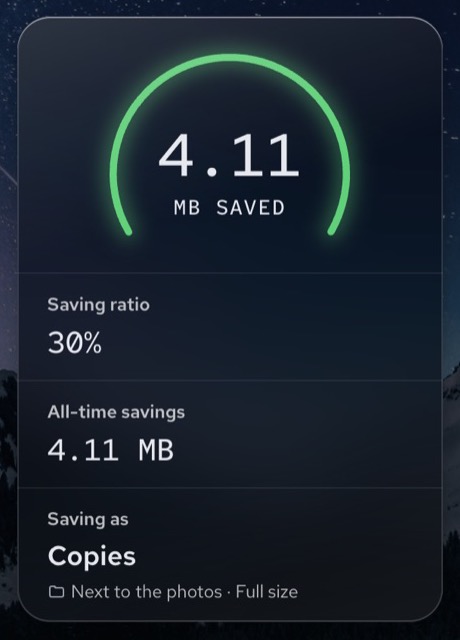
The card after a session.
On the card | What it means |
|---|---|
Saved (the big number) | How much smaller this session’s photos are, all together. |
Saving ratio | How much smaller, as a share of the original size. 30% means the photos now take 30% less space. |
All-time savings | Everything JPEGmini has saved on this computer. |
Saving as | The preset your next drop uses, and where it saves. |
The line at the bottom of the window gives the number of photos. Click Show files to open the folder with the new photos.
Open the details
Click the number of photos at the bottom of Home (for example, 9 photos).
The details open on the right. They list where the photos were saved, the size before and after, and every photo by name.
To paste the list into a message, click Copy details. Click Close when you’re done.
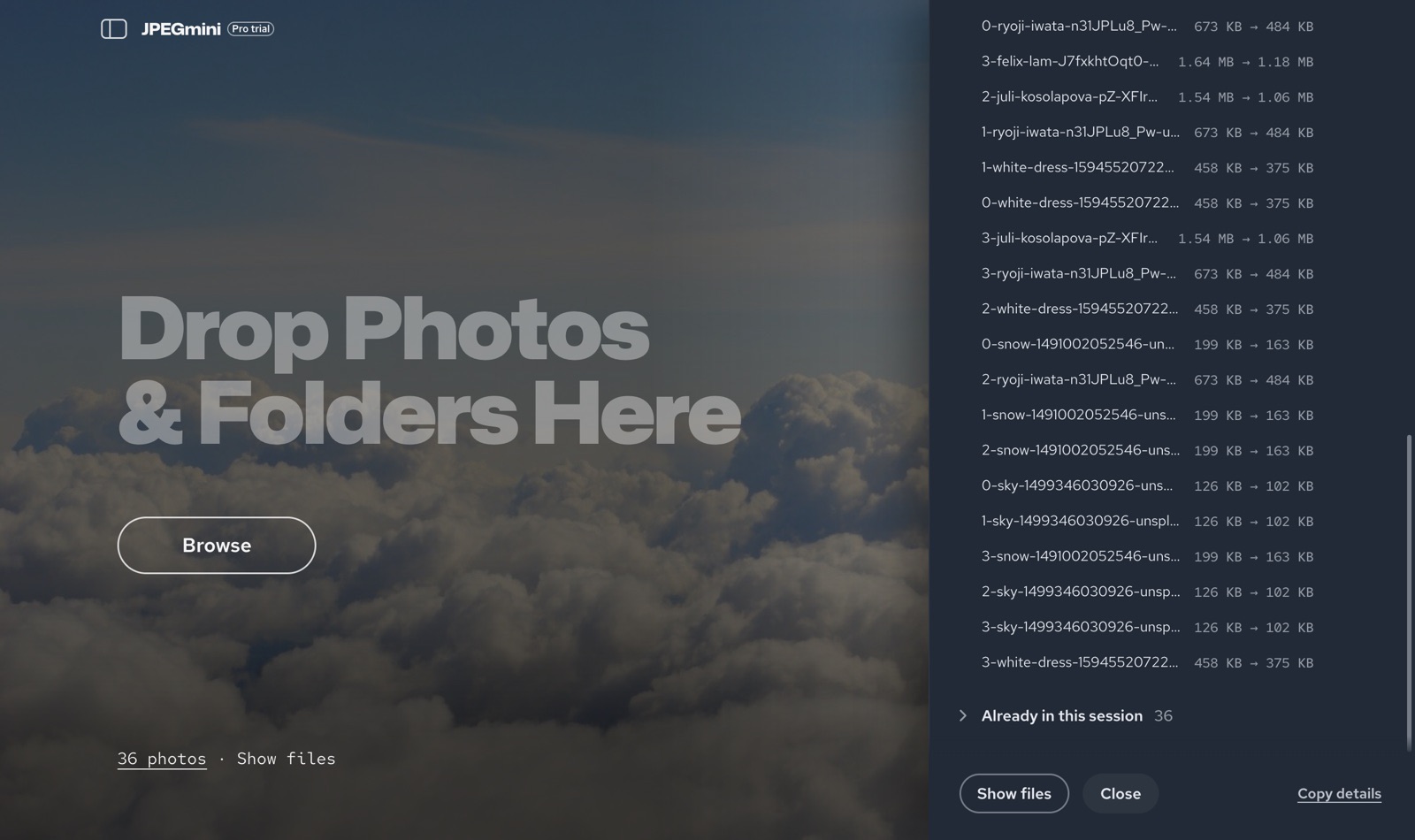
The list of photos in the details, each with its size before and after.
The groups in the details
Group | What it means |
|---|---|
Smaller | Photos JPEGmini made smaller. |
Kept as they are | Photos JPEGmini didn’t change, each with the reason. Often it’s that a photo is already as small as it can be. Nothing is wrong with these photos. |
Couldn’t be saved | Photos JPEGmini couldn’t save, each with the reason. Their originals are untouched. |
Already in this session | Photos you dropped twice while the session ran. They were done once. |
For photos that couldn’t be saved, fix what the reason says, then click Try again. Every reason is explained in Why wasn’t a photo optimized?
Kept as it is
Details says why for each photo. “Already optimized by JPEGmini. Kept as it is.” means JPEGmini made this photo smaller before. “Already as small as it can be. Kept as it is.” means it’s already well compressed, or making it smaller would save very little.
If a session made nothing smaller, Before and After show a dash (–).
A very big drop. If you drop more photos than JPEGmini takes at once, it says “Added the first … photos. The rest, from “[folder]” on, weren’t added.” Drop that folder and the ones after it once the session is done.
When nothing got smaller
Home may say the photos are already as small as they can be. This happens with photos that were already optimized, by JPEGmini or by another app, or that were exported at a low quality. JPEGmini leaves them as they are. Photos straight from your camera usually save the most.
Videos and other files
JPEGmini 5 doesn’t optimize videos; JPEGmini 4 still does. Videos you drop are listed in the details, each with “A video. Left as it is.” Other files in a dropped folder, such as RAW files and PNG, are left where they are. See What JPEGmini changes, and what it never touches.
Earlier sessions
Home shows the latest session. To see earlier ones, open Overview: click the sidebar button at the top left of the window, or press ⌘3 (Mac) or Ctrl+3 (Windows). The details of a session stay available for a limited time; they say how long.
