

Before you start
JPEGmini 5 runs on Macs with an Apple chip (macOS 13.5 or later), and on Windows 10 (22H2) or Windows 11. If you haven’t installed it yet, see Install JPEGmini 5 on a Mac or Install JPEGmini 5 on Windows.
If you have JPEGmini 4, you can keep it. JPEGmini 5 installs beside it and doesn’t change it. See Moving from JPEGmini 4.
The first time you open JPEGmini
The first time you open JPEGmini, it takes a few seconds to set up Home. The last thing to appear is a small line: “By using JPEGmini, you accept the License Agreement and Privacy Policy.” You can drop photos at any moment.
Your first batch is free, and you don’t need an account for it. See Your first photos: no account needed.
Optimize your first photos
Open JPEGmini. You see Home: the words Drop Photos & Folders Here, and a card that shows what you save.
Drag photos or a whole folder onto the window. Or click Browse and choose them. You can also drop them on the JPEGmini icon in the Dock (Mac) or taskbar (Windows), or open them with JPEGmini.
The first time, JPEGmini asks how to save your photos. Keep Save smaller copies if you’re not sure: your originals stay as they are. Click Start. More about this question.
Watch the count at the bottom of the window (for example, “3 of 9 photos”) and the savings on the card. To stop early, click Stop.
When it’s done, click Show files to see the smaller photos.
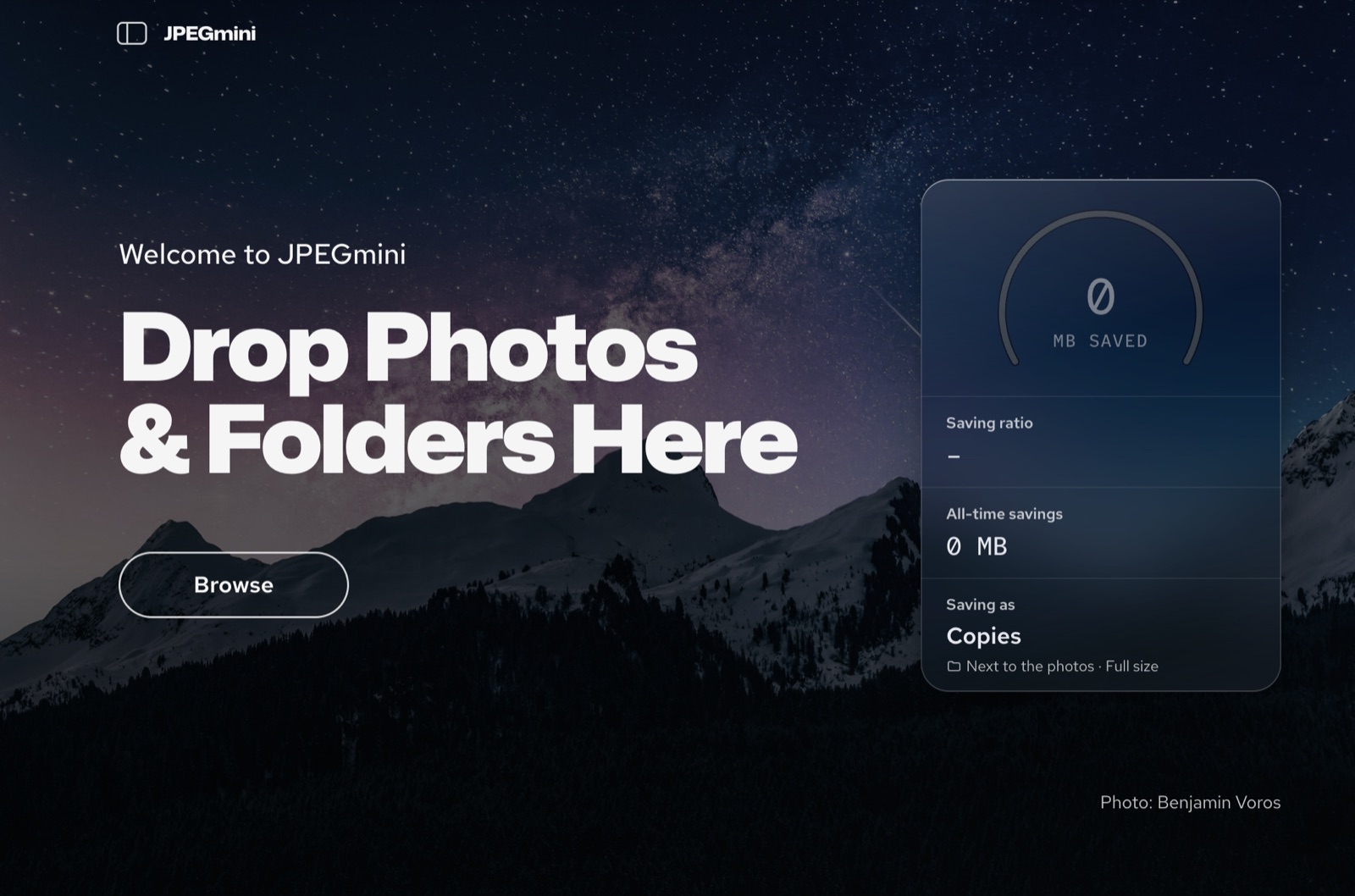
Home, before your first drop. The card shows where photos will be saved: here, Copies, next to the photos, at full size.
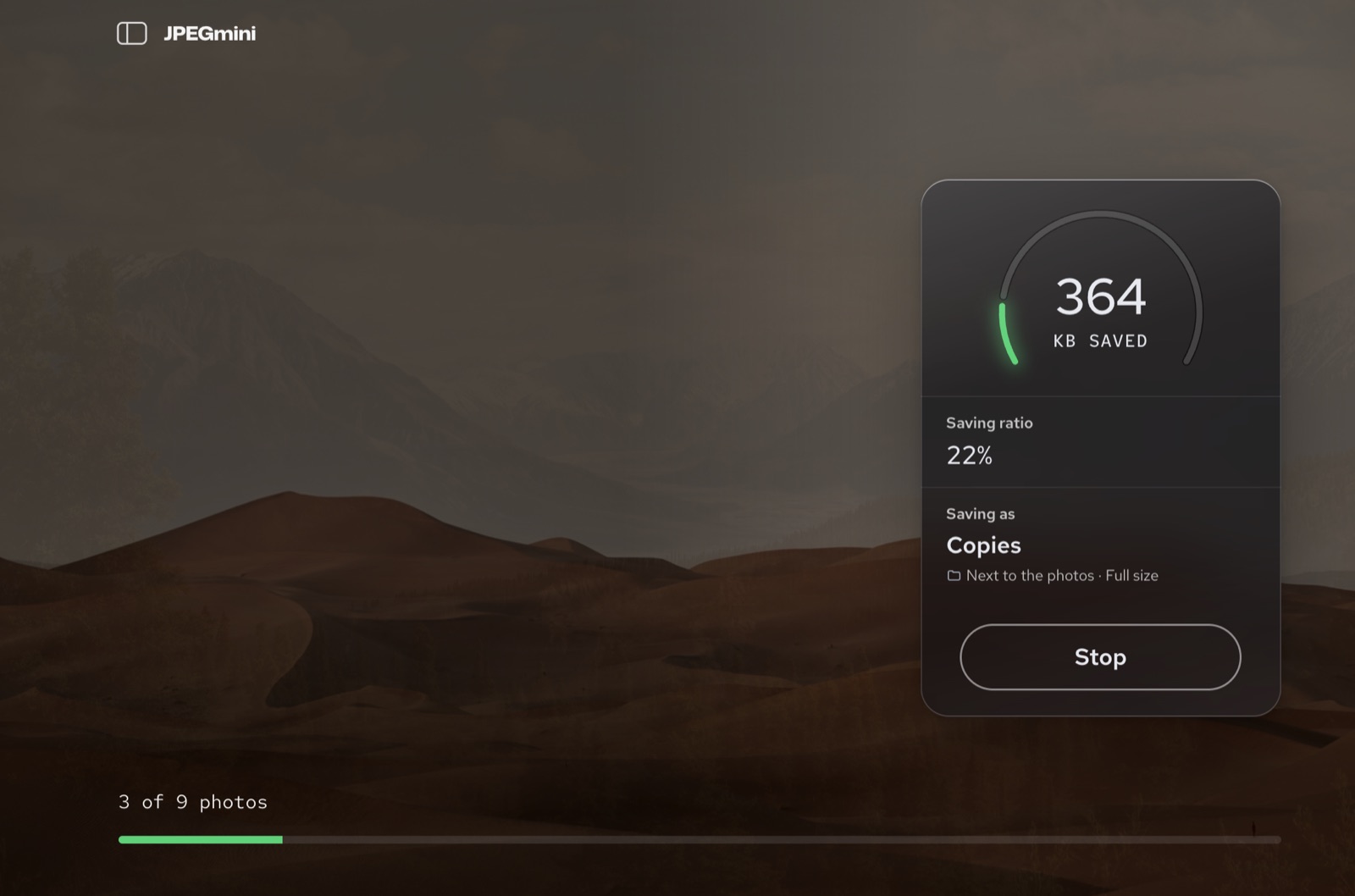
While JPEGmini works: the count and bar at the bottom, the savings growing on the card.
Where your smaller photos go
With Save smaller copies, JPEGmini makes a folder named JPEGmini next to what you dropped and puts the smaller photos in it. A dropped folder keeps its name and its subfolders inside it. Your originals don’t change.
You can send copies to a folder you choose instead. See Where your photos go: Saves to.
What JPEGmini works on
JPEGmini optimizes JPEG and HEIC photos. It doesn’t change anything else: RAW files, videos, PNG and other files stay exactly where they are, and aren’t copied. See What JPEGmini changes, and what it never touches.
Sign up to keep optimizing
You can optimize your first photos without an account. After them, JPEGmini asks you to sign up to keep optimizing. If your first drop is large, the rest of the photos wait until you sign up. If this computer has a JPEGmini 4 license, JPEGmini uses it and doesn’t ask. Enter your email and JPEGmini sends you a code, or use Sign in with Google. If you have a JPEGmini 4 license code, choose I have a license code.
Signing up starts your JPEGmini Pro trial. Home shows how many days you have left. More in Your first photos: no account needed. See Your plan, the trial and buying.
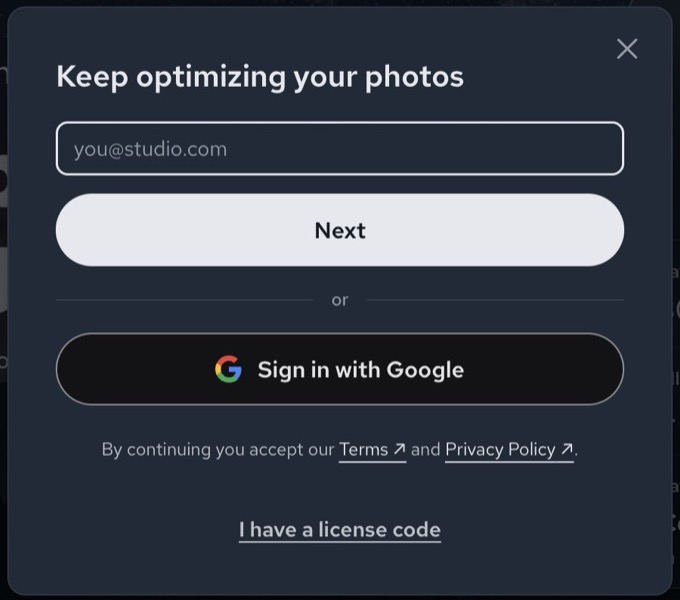
Sign up with your email or Google.
Next steps
Make web-size copies, add a watermark or rename files: make a preset. See Make a preset, step by step.
Have photos done by themselves: set up a hot folder, and JPEGmini optimizes new photos as they arrive. See Set up a hot folder.
Understand the numbers: see What the numbers mean.
