Adobe Lightroom Plugin Installation
To install the JPEGmini plug-in into Lightroom, perform the following steps:
1) After downloading JPEGmini Pro Lightroom Plug-in installer file (exe), click "Accept" on the windows that is opened.
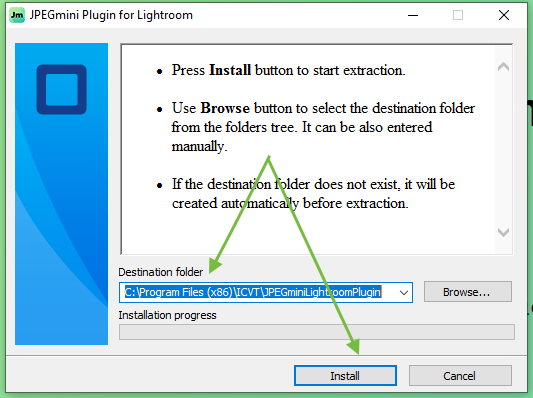
2) Next the following window will open. Select a destination folder on your local hard drive (you can use the default location) and click "Install" (allow the installation if prompted):
3) Open Lightroom app.
4) Click "File" --> "Plugin Manager".
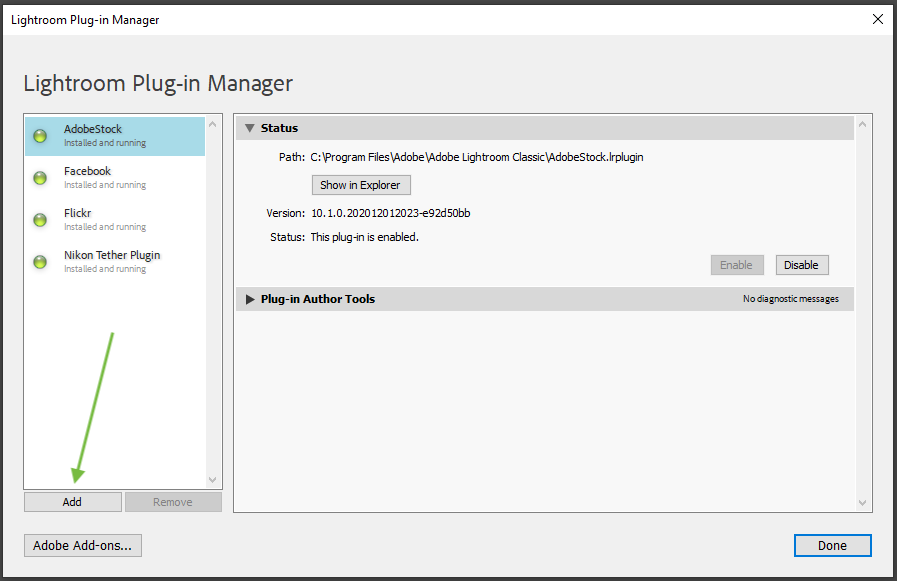
5) On the Plugin Manager windows click "Add" button to add a new plug-in:
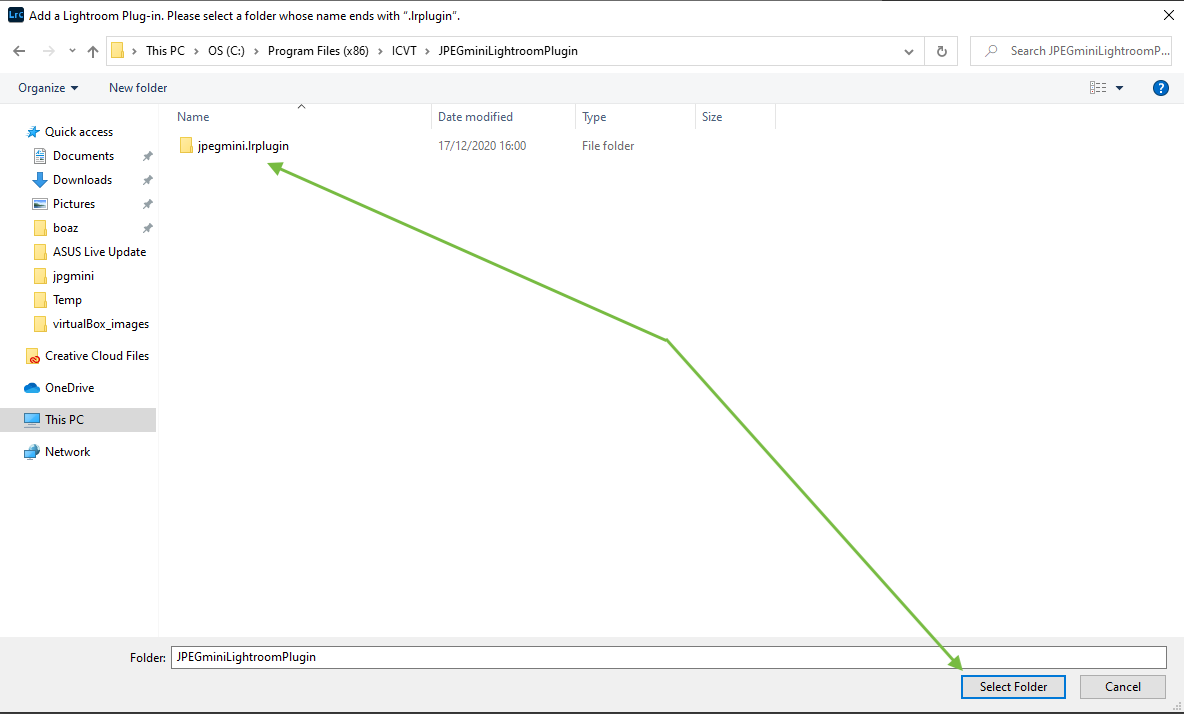
6) Open the location where the plugin was saved and select the folder named "jpegmini.lrplugin" and click "Select Folder":
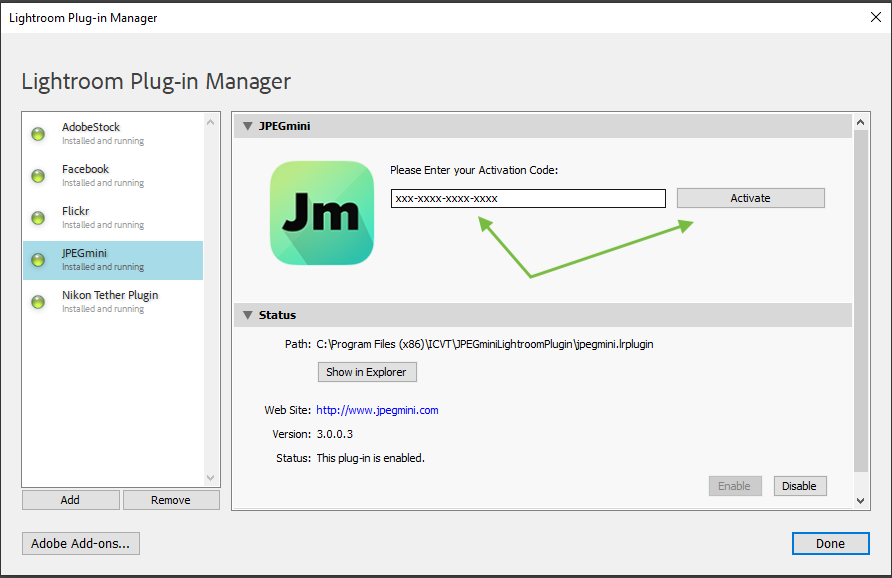
7) Next, on the JPEGmini plugin window, enter your activation code and click "Activate":
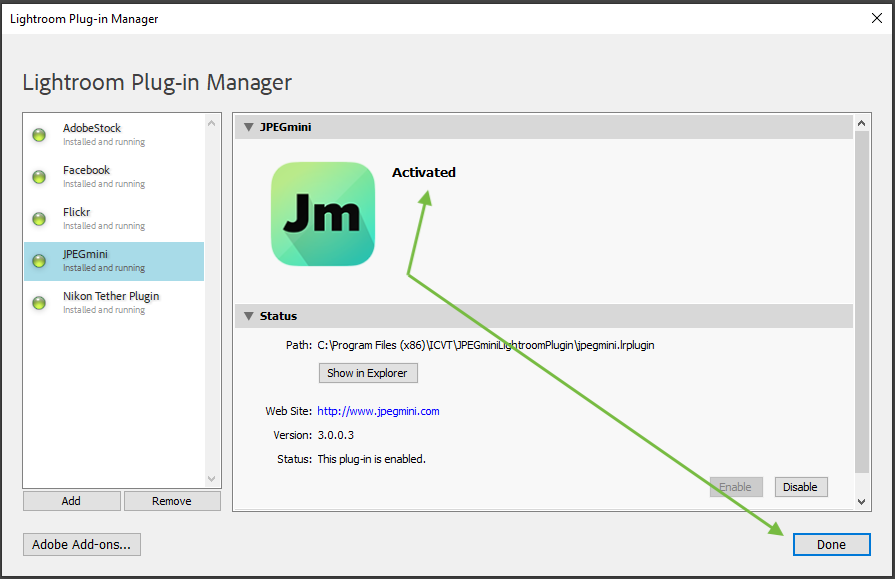
8) When the plugin is shown as "Activated", click "Done":
Stage 2: Insert the plug-in to the export workflow
1) Select an image you want to export and click export.
2) In the export window make sure that you export the image as a JPEG format.
3) In the "Post-Process Actions" section, select "JPEGmini", click "Insert" :
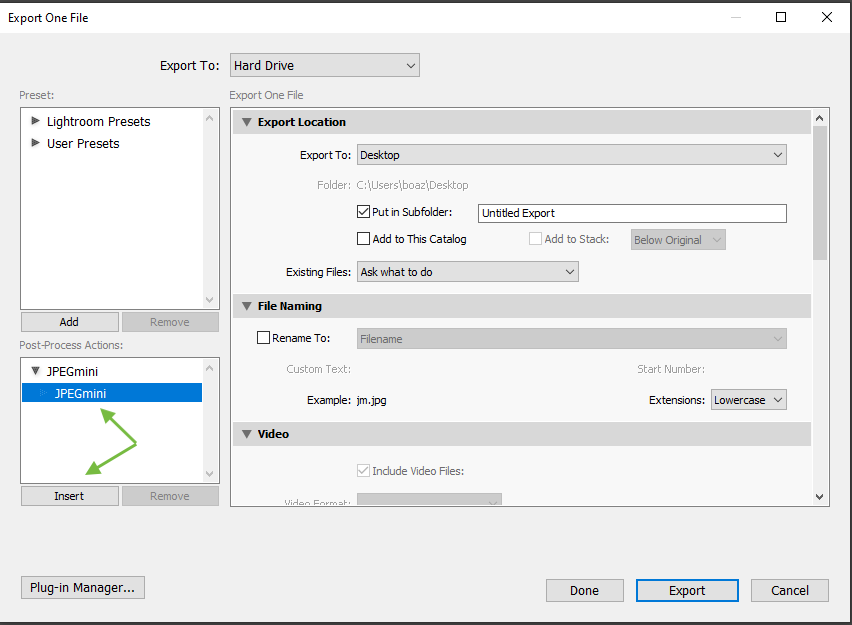
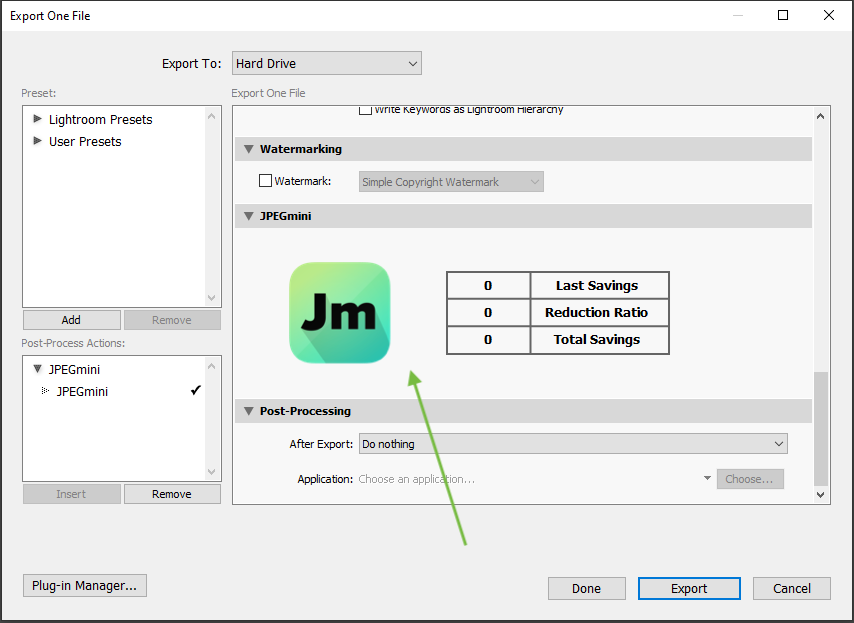
4) Verify that JPEGmini is indeed in the export workflow: