

Read the card
Under Saving as you see the preset’s name, such as Copies, and a quiet line with where the photos go and their size, such as “Next to the photos · Full size”.
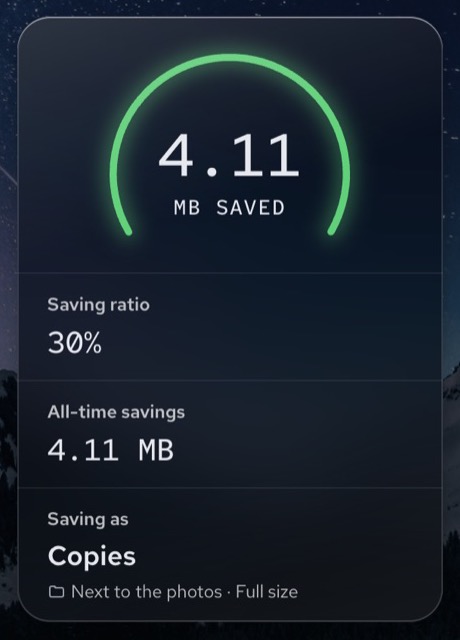
The card on Home. Saving as is at the bottom.
Switch to another preset
On Home, click Saving as on the card.
Choose a preset. The one in use is ticked.
Your next drop uses it, and so does every drop after that until you change it again.
The menu lists your starred presets. To start, it’s Copies. To put another preset here, star it. See Star a preset to show it on Home. The last item, Add or edit presets…, opens the Presets page.
If the preset in use isn’t starred, it shows below the starred ones, ticked.
Dropping while photos run
While photos are running, a new drop says Adds to this session, and the new photos are saved the same way as the ones running.
When the preset needs you
If the folder a preset saves to can’t be reached, the card says why, under Saving as:
Its folder is missing: it was moved, renamed or deleted. Choose another folder for the preset, or pick another preset.
“…” isn’t connected: connect the drive. See Drives and cards.
No access to its folder: see Giving JPEGmini access to a folder.
